

The job page, drafts and publishing
Everything an interview is made of is on one page. Saving keeps it as a draft; candidates only get what you publish.
Updated:
Press a job’s title in the jobs list to open it. Every setting for its interview is on this one page.
The bar at the top
The title, the job’s status, and three buttons: View as a job sheet, Save draft and Publish. The bar stays at the top of the window as you scroll.
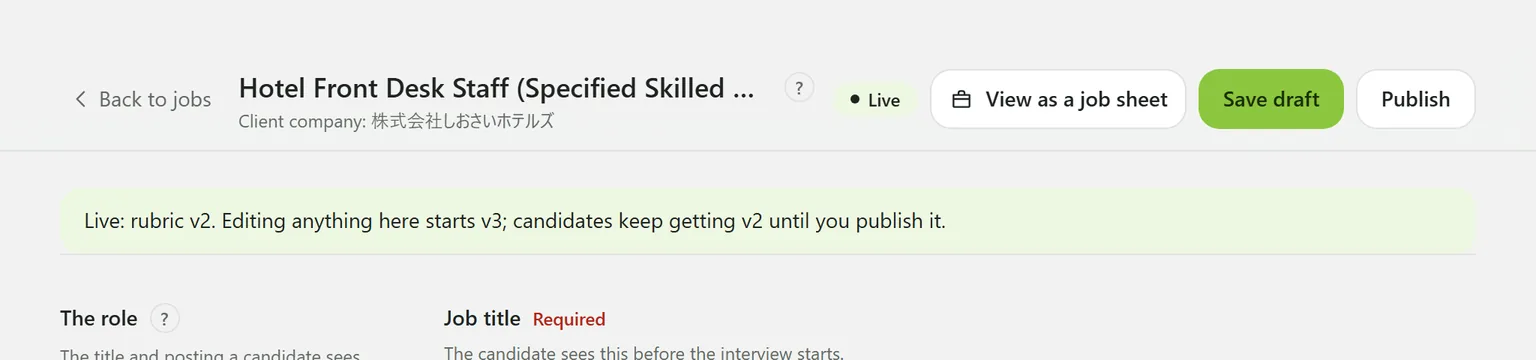
Under it, a band says which version is live and which one you are editing.
What is on the page
From top to bottom:
| Section | What it holds |
|---|---|
| The role | Job title, job description, hiring type |
| Public application link | The link anyone can apply through |
| How the interview runs | Languages, length, recording, reminders |
| Scoring criteria | What the interview is for, the criteria and their weights |
| Questions | What the interviewer asks, in order |
| Pass guide | The band shown on results and reports |
| Publishing | The checklist and the Publish button |
| Delete this job | At the very bottom, owners only |
Viewers see the same page, read-only.
The role
The title, the job description and the hiring type. The description takes headings, bold and lists, and Preview shows how it will look.
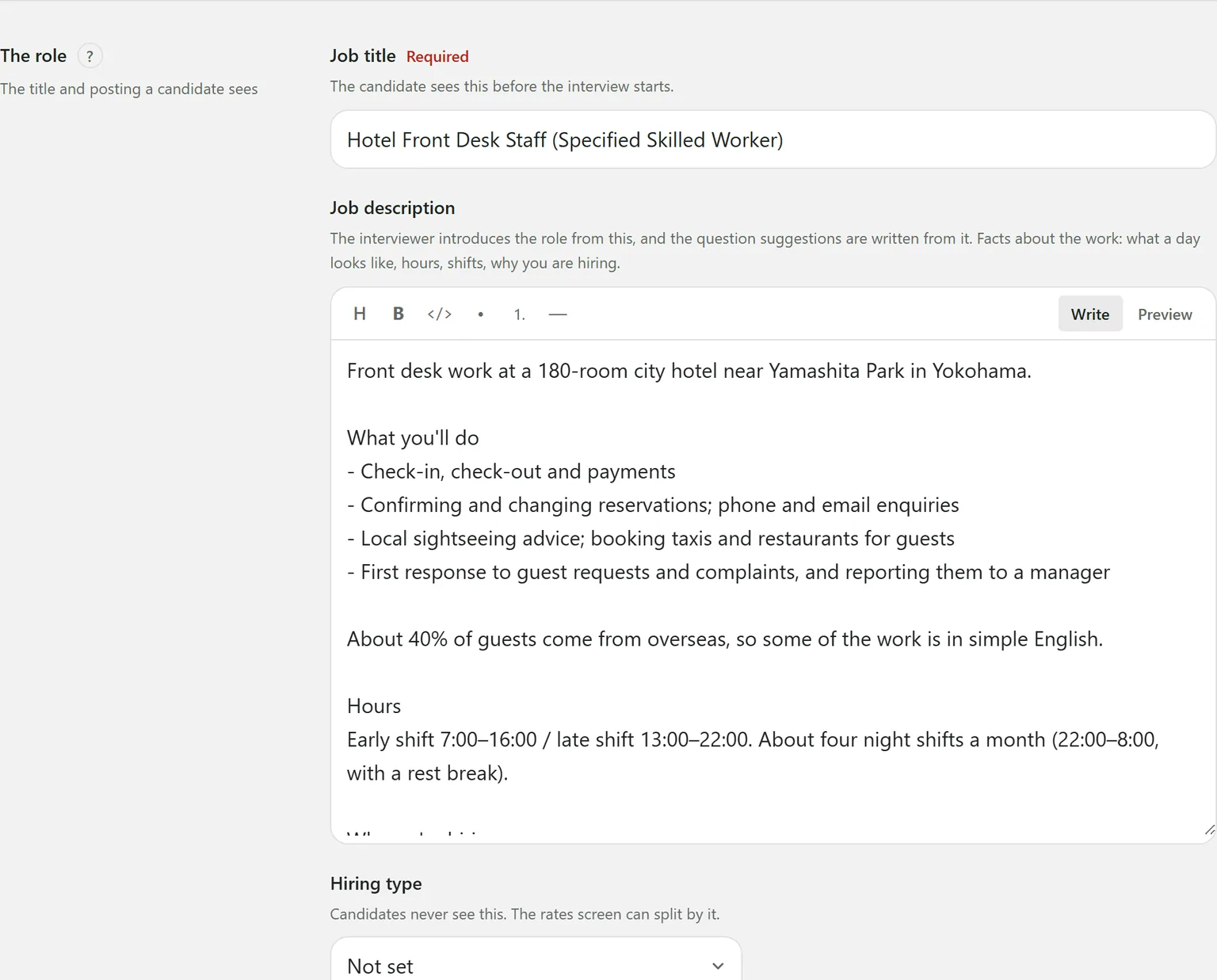
The AI writes its criteria and question suggestions from the description, and the application form and job sheet show it as written.
Saving versus publishing
Save draft changes nothing a candidate sees. Publish does.
- Scoring criteria and questions are versioned. Edit them after publishing and you are editing the next version (v3, say); candidates keep getting the live one (v2) until you publish.
- How the interview runs is not versioned. Saving is enough: the change applies to every interview that starts afterwards.
- The pass guide applies to every result for the job as soon as it is saved.
See Publish a job.
Still stuck?
Ask Hitoshiru AI from the Ask AI button at the bottom right of the console. If that does not answer it, email us.