

The application link and job sheet
Every job has a link anyone can apply through. Put it on your site, in a LINE message, or on a printed job sheet with its QR code.
Updated:
The link is created the first time a job is published. Anyone who opens it can apply for that job.
Copying the link
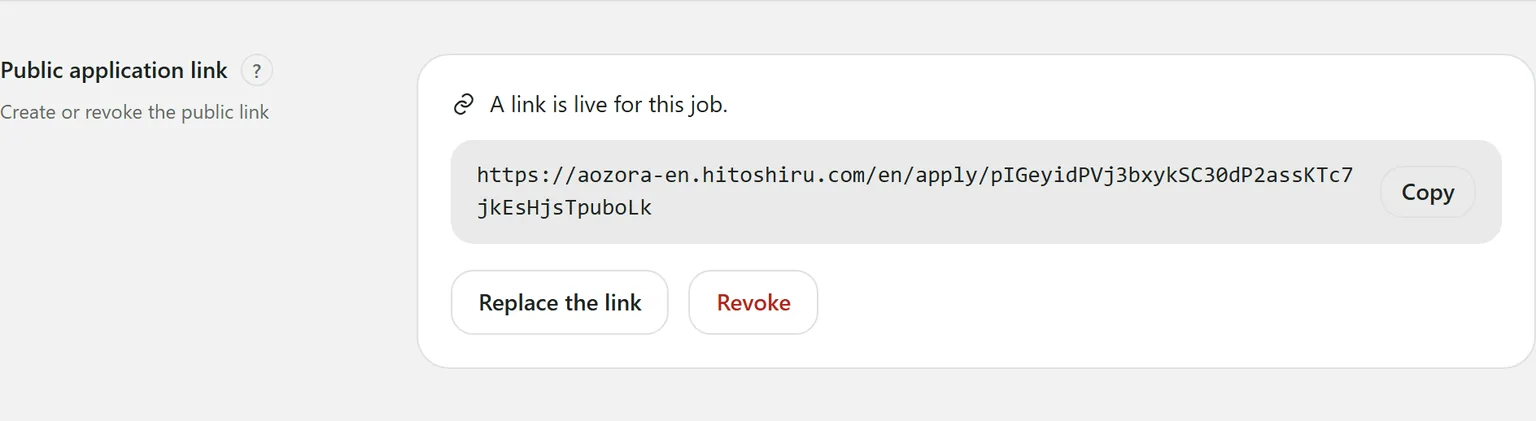
Press Copy in the job’s Public application link section, or under Taking applications at in Publishing. Paste it on your website, in a LINE broadcast or on a job board.
The job sheet and QR code
View as a job sheet in the top bar, or Show the posting and its QR code under Publishing once the job is live, opens a printable job sheet with a QR code. Print / Save as PDF prints it or saves it as a PDF, for a poster in a shop window or a paper handout.
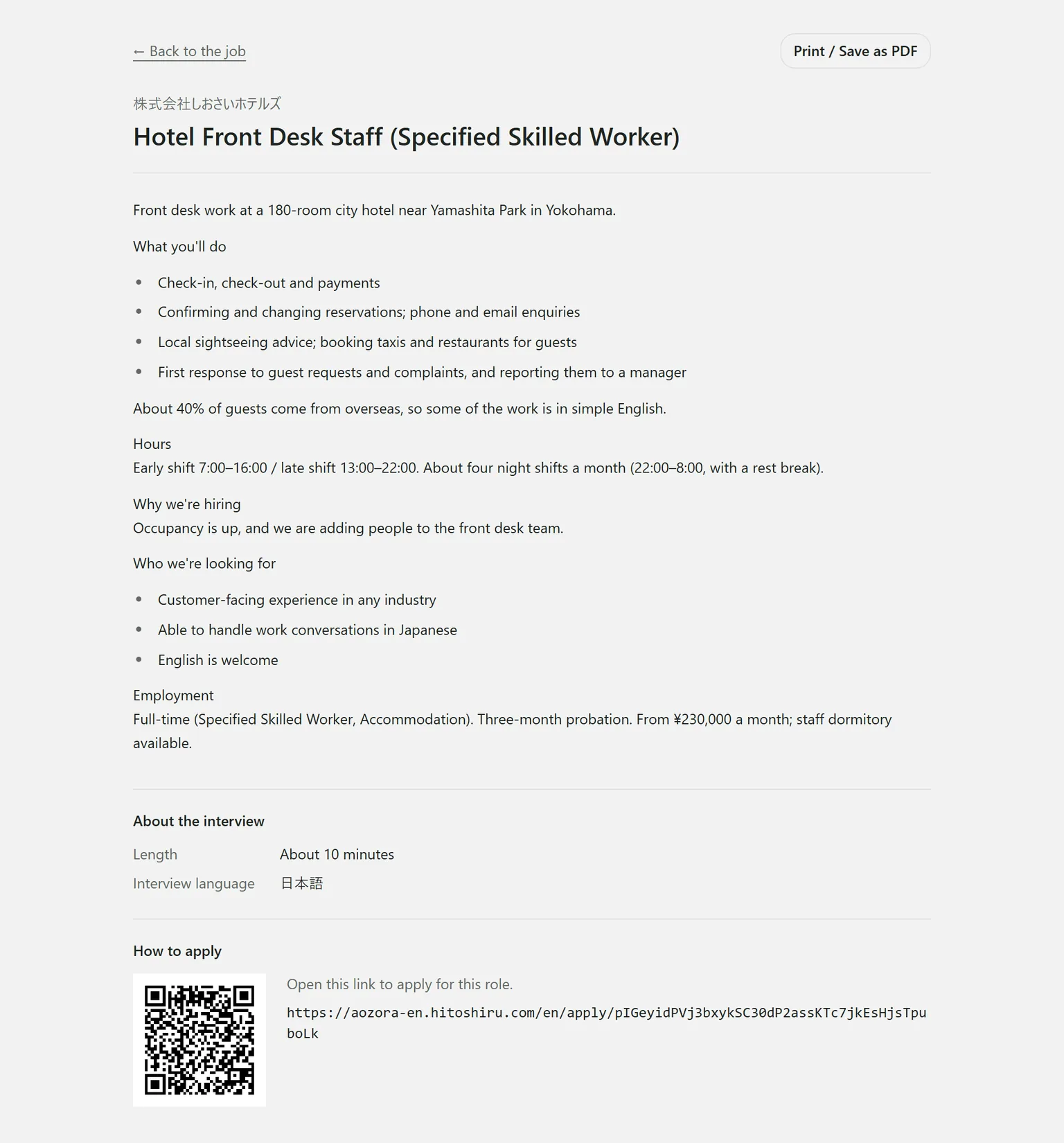
It shows the job description, About the interview (length and language) and How to apply (the link and QR code). Before the job is published it says “This role is not accepting applications yet. Publish it before handing this sheet out.”
What applicants fill in
Name, name in kana, email, phone, a short self-introduction and background, one file such as a CV (PDF or Word .docx, up to 5 MB), and their consent to how the data is handled.
When someone applies
- The application appears under Invites, marked as applied, and under New applications on Today.
- The AI reads any attached document against the job’s criteria.
- You decide whether to send the interview after reading it. To send it automatically on every application, turn on Send the interview as soon as somebody applies in How the interview runs. It is off by default.
Revoking or replacing the link
Owners only.
- Revoke stops applications.
- Replace the link makes a new one. The old link stops working at once, so printed sheets and posters need replacing too.
- Create a link appears before the job is published, or after the link has been revoked.
Still stuck?
Ask Hitoshiru AI from the Ask AI button at the bottom right of the console. If that does not answer it, email us.